
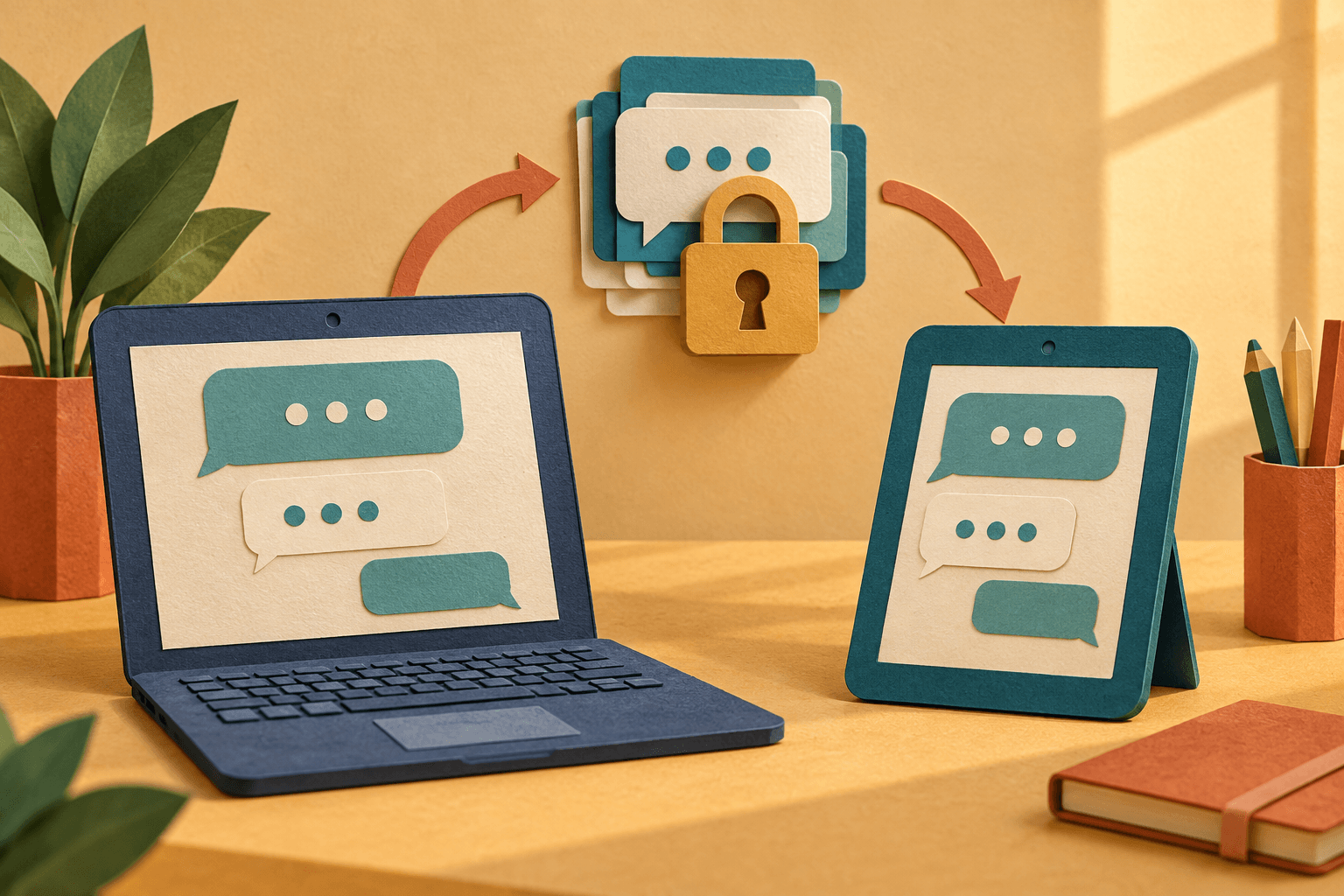
We’ve added a new option for saving your Schoolhub chat history, so you can start a conversation on one device and continue it on another.
This has been a common request from teachers who move between computers at school and at home. At the same time, we know that schools have important questions about privacy, GDPR and where conversations are stored.
So here’s how it works.
Your history, across devices
Saved chat history is optional and can be enabled for organisations that want to use it.
When you turn it on, you choose a four-digit PIN. Your conversations can then be synchronised with your Schoolhub account.
Sign in to Schoolhub on another device, enter your PIN, and you can pick up where you left off.
How are conversations stored?
Your messages, conversation titles and the settings needed to continue a chat are encrypted in your browser before they are saved.
Your saved chat history is stored within the EU.
This is different from our previous chat history, which was stored only in the browser on the device you were using.
If you enable saved history while you are already in a conversation, that conversation will be added to your synchronised history. Older conversations stored locally in your browser are not automatically uploaded and will be cleared when you make the switch.
Some basic technical information, such as record IDs and timestamps, is stored separately so the service can work.
How do we protect your history?
Part of the encryption happens directly in your browser before your conversation is stored.
Your PIN is one part of the protection, together with your Schoolhub login and additional safeguards around the encryption keys.
This means your saved conversations are not stored in the history database as readable text. A copy of the database alone is not enough to read the conversations, and an ordinary Schoolhub administrator cannot open or read users’ saved chat histories.
When you unlock your history, Schoolhub uses your PIN and the necessary security keys to make the conversations available in your browser again.
When you continue a conversation, the messages are still processed through Schoolhub in the normal way so that the AI can respond. Saving your history does not change how a message is processed when you send it.
What about shared computers?
Your saved history locks automatically after 30 minutes without history activity. It also locks when you sign out or choose to lock it yourself.
Schoolhub can temporarily keep an unlocked session available in the browser, so refreshing the page does not necessarily mean entering your PIN again.
If you use a shared computer, we recommend signing out when you are finished.
What if I forget my PIN?
There is no way to recover a forgotten PIN while keeping the existing history.
If you reset your PIN, your synchronised history is deleted, together with the local chat history for your account on that device.
You can also delete individual conversations whenever you want.
If your organisation later turns off access to saved history, the stored history is not automatically deleted. It simply becomes unavailable until access is enabled again or the history is deleted.
Want to enable saved chat history?
We’re starting to make saved chat history available to schools and organisations that want it.
If you would like to enable it, or if your IT or privacy team would like more information about how it works, get in touch with us at contact@schoolhub.ai.
We’re happy to help with both the practical setup and any questions around privacy, security or GDPR.